Official manual · Initial setup
Shadowrocket Setup Guide
First import an existing server or subscription into the app, then choose a routing mode and connect. Finally, check the server test and actual access separately to confirm the results meet your expectations.
Add a server or import a subscription in Add Server
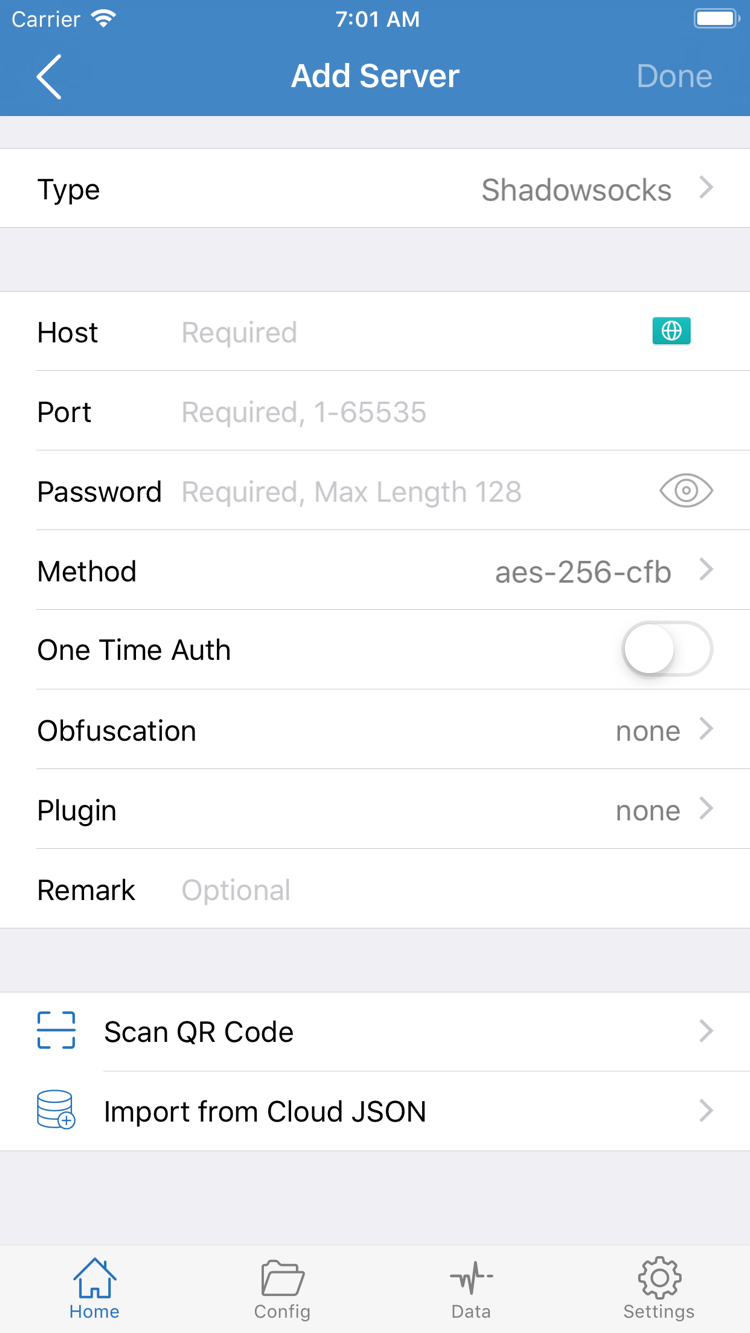
Open Shadowrocket and find Add Server in the SERVER section of Home. First identify what information you have: if you have a single server's address, port, and authentication details, add it manually; if you have a subscription link for updating a group of servers, use Subscribe. Choose either method; there is no need to create a manual entry before importing a subscription.
For an existing server: confirm Type first
In Add Server, tap Type and choose the protocol specified in your details, such as Shadowsocks or Trojan. Then check Host and Port: enter the address and port in their respective fields, and do not paste a complete link into Host. The fields below vary by Type. If Password or Method appears, enter the supplied details; do not reuse optional parameters from another entry if none were provided. Check for leading or trailing spaces after pasting, and make sure quotation marks, periods, or line breaks from a chat message were not included.
If you have a QR code specifically for importing a server, scan it using Scan QR Code. Decide whether to allow camera access if prompted. Check the Type and address after scanning; a successful scan does not mean the connection works. If you do not have the corresponding cloud data, do not tap Import from Cloud JSON. Save, return to Home, and find the entry you just added.
For an existing subscription link: use Subscribe
Choose Subscribe from the Type list in Add Server, paste the complete original subscription link into the link field, and save. If the link has query parameters, keep everything after the question mark; do not use a shortened version displayed by a chat app. Return to Home and confirm that the subscription group and its server entries appear. If you see the group but no entries, use the update action shown in the interface to fetch them again, then check for an error message. A subscription link may contain access credentials. If an error occurs, note the message without sharing the full link.
An entry appearing means the app received server details; it does not mean the server is necessarily available. Tap the entry you want to use under SERVER. If you imported multiple entries with the same name, identify the right one by its group and address instead of relying on the name alone. Next, choose which connections should use this server.
Choose a routing mode in Global Routing
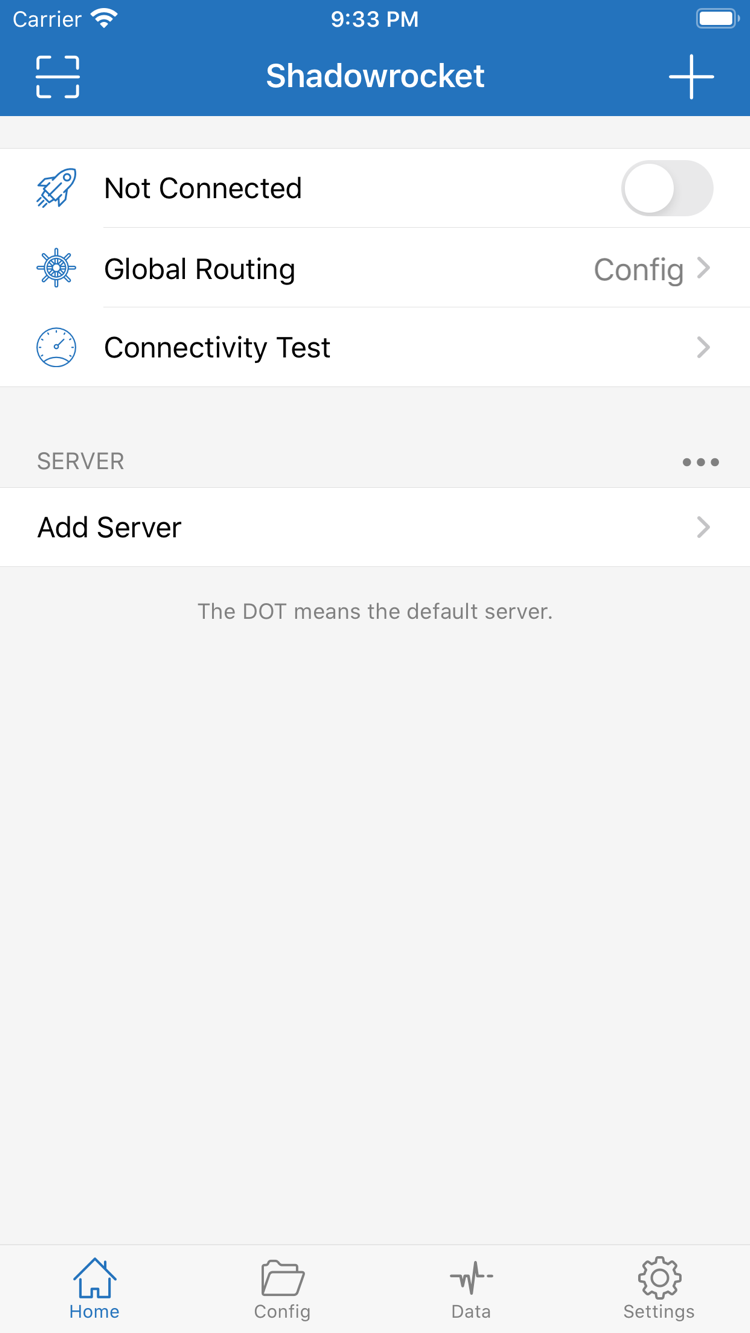
Return to Home and tap Global Routing. This controls how connections are routed; it does not import servers. If you already have a routing configuration, choose Config. To temporarily check whether the selected server can proxy ordinary traffic, use Proxy for comparison. To check whether the current network can access a site without using a proxy server, use Direct as a baseline. Note the original selection before comparing.
- Config: Results are determined by the currently enabled configuration file. During the same browsing session, requests to the main site and to other domains, such as images or login APIs, may take different routes. This is the result of matching each connection.
- Proxy: Traffic handled by the app is processed in proxy mode, which is useful for a brief comparison. A site being accessible in this mode does not mean it will match a proxy rule in Config.
- Direct: Connections handled by the app do not use a proxy server. This is useful for comparing results with Proxy, but it is not the same as turning off the switch at the top of
Home. To stop the connection, return toHomeand turn off the switch.
When using Config, confirm which file is active
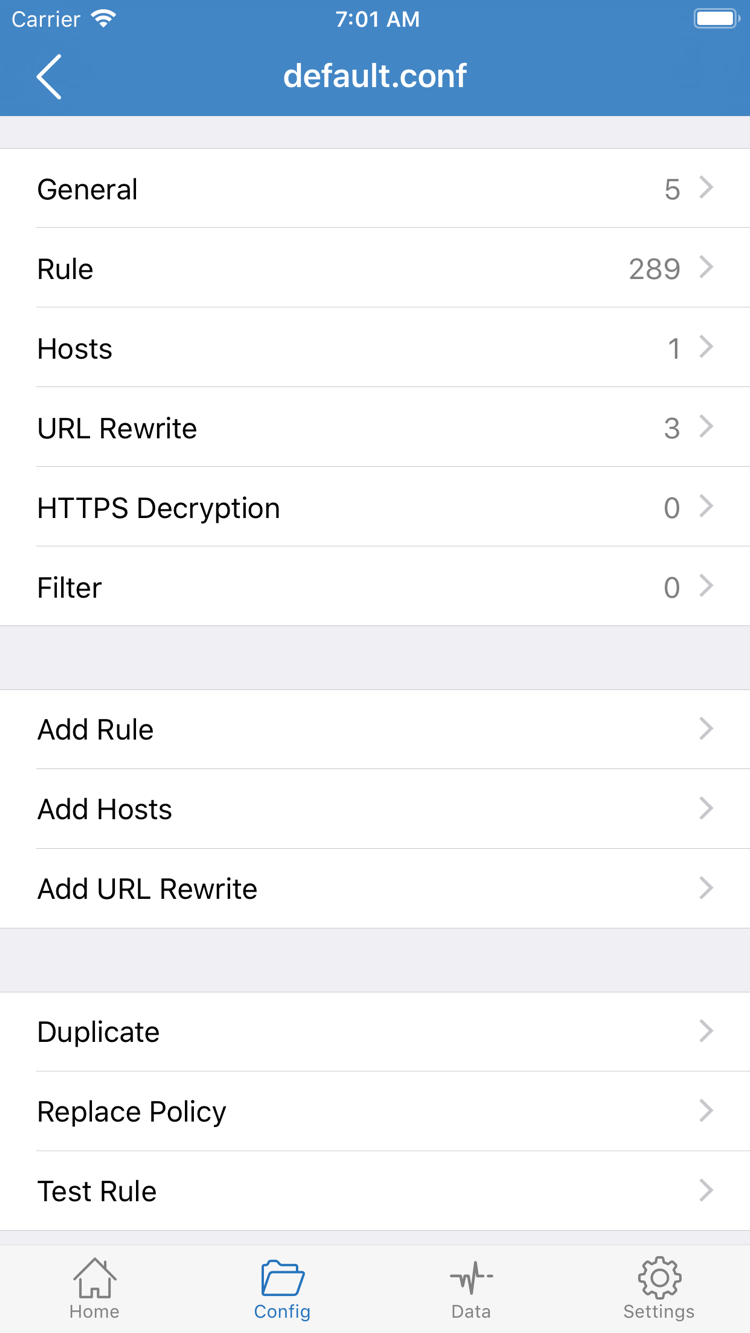
Config in Global Routing is a mode; Config at the bottom is the page for managing files. After choosing the mode, open Config at the bottom and check that the expected file is enabled. Opening a file to view its edit screen does not mean it is set as the active configuration. Confirm its enabled status first, then open the file's Rule section. Do not change Hosts or HTTPS Decryption just to make an initial connection.
To check how a domain is handled, read the rules from the top and look for an earlier match before checking how FINAL handles connections that did not match a preceding rule. For example, a domain may match a later DOMAIN-SUFFIX rule, but if an earlier rule already matches, you cannot infer the result from the later rule alone. For initial setup, focus on reading the rules; there is no need to tap Add Rule. For more about rule order and actions, see the complete Shadowrocket user manual.
After leaving Settings, check the Global Routing summary on Home to confirm that it shows the mode you just selected. If you are only testing the connection, do not change the server and configuration file at the same time. Keep one variable constant so you can identify which setting changed the result.
Turn on the Home switch and approve VPN access
On Home, check two things: the entry you want to use under SERVER and the mode shown in Global Routing. If the top of the screen still shows Not Connected, tap the connection switch beside it. First confirm that the device can use the current Wi-Fi or cellular network normally. If the public Wi-Fi requires a login, sign in to the network first, then try connecting again.
First launch: confirm the source in the system prompt
If your iPhone or iPad displays a system prompt to add a VPN configuration, first confirm that it appeared in response to turning on the switch, then approve it as instructed. The device may ask you to confirm with biometrics or your passcode. Grant authorization in the system prompt. Server details and your device passcode are different types of information. Allowing the VPN configuration for the first time grants the system permission needed to establish a connection; it does not verify your subscription or change the Global Routing selection.
If you chose not to allow it, return to Home. If the switch does not stay on, try connecting again to prompt the system to show the request. If the prompt still does not appear, search for VPN in system Settings and check whether a configuration already exists or whether a company or school device management policy restricts changes. For managed devices, check with the administrator; do not remove configurations or device management items you do not recognize.
After granting authorization, return to Home and wait for the status to update. A switch that stays on means the app has started the connection; it does not confirm that the selected server is reachable or that a particular site is using a proxy. If the switch turns off immediately, note the exact message and the network type, then follow the troubleshooting steps instead of repeatedly toggling it. Once the status is stable, continue to the next step.
Cross-check with Connectivity Test and real-world access
Check three things: whether the switch stays on, whether the selected server passes this test, and whether the target site behaves as expected. Continue to the next check only after the previous one succeeds, but do not use an earlier result as a substitute for a later one.
- Check the test target.Confirm the selected server on
Home, tapConnectivity Test, wait for the current test to finish, and review the result for that entry. Do not mistake a value left over from another entry for the current result. A response means the test received a response under the current network and test conditions; it is not the actual download speed and does not guarantee access to every destination. - Open a site you actually use.Open a site that is normally accessible in your browser, reload the page, and make sure you are not just viewing cached content in an old tab. If you normally use Config, also choose a site whose handling can be determined by the current rules and check the result. Opening a site that is normally accessible directly cannot show whether the connection went direct or through a proxy.
- Compare one setting at a time if results differ.Keep the network, server, and destination the same. Only when needed, briefly switch between Config, Proxy, and Direct, retrying in the same way each time. If Proxy works but Config does not, check the active file and rule order first. If Direct also cannot open a site that is normally accessible, check the current network or the site first. Restore your usual mode after testing.
Check permissions, servers, and settings by failure stage
Return to the first step that did not produce the expected result; there is no need to reinstall the app or clear the configuration. If the switch will not turn on, check permissions first. If it stays on but the test gets no response, check the selected server. If the test returns a result but access is abnormal, check routing and the destination site. Change one setting at a time, then return to Home and repeat the same check from the previous section.
The switch turns off, or the connection returns after being turned off
If the switch turns off, first confirm that you approved the system VPN request, then check whether another VPN is in use on the device. On a personal device, if you can safely disconnect another connection temporarily, do so and try again; do not delete its configuration. If the connection returns after you turn it off and change networks, open Settings and check whether On Demand has trigger conditions configured. During troubleshooting, you can temporarily disable the on-demand connection you configured, then restore it to your original preference after testing.
No entries appear after import, or the test gets no response
If a subscription group is empty, return to the subscription entry and check that the original link is complete. Confirm that the device itself can access the internet while updating. If an update reports an error, check the link status with your existing service provider. If a manually added entry never receives a test response, return to it and check Type, Host, Port, and authentication details one by one. Do not guess by changing authentication parameters. If one entry fails while another in the same group passes under the same conditions, troubleshoot that entry first. If every entry fails on the same network, compare using another network known to work.
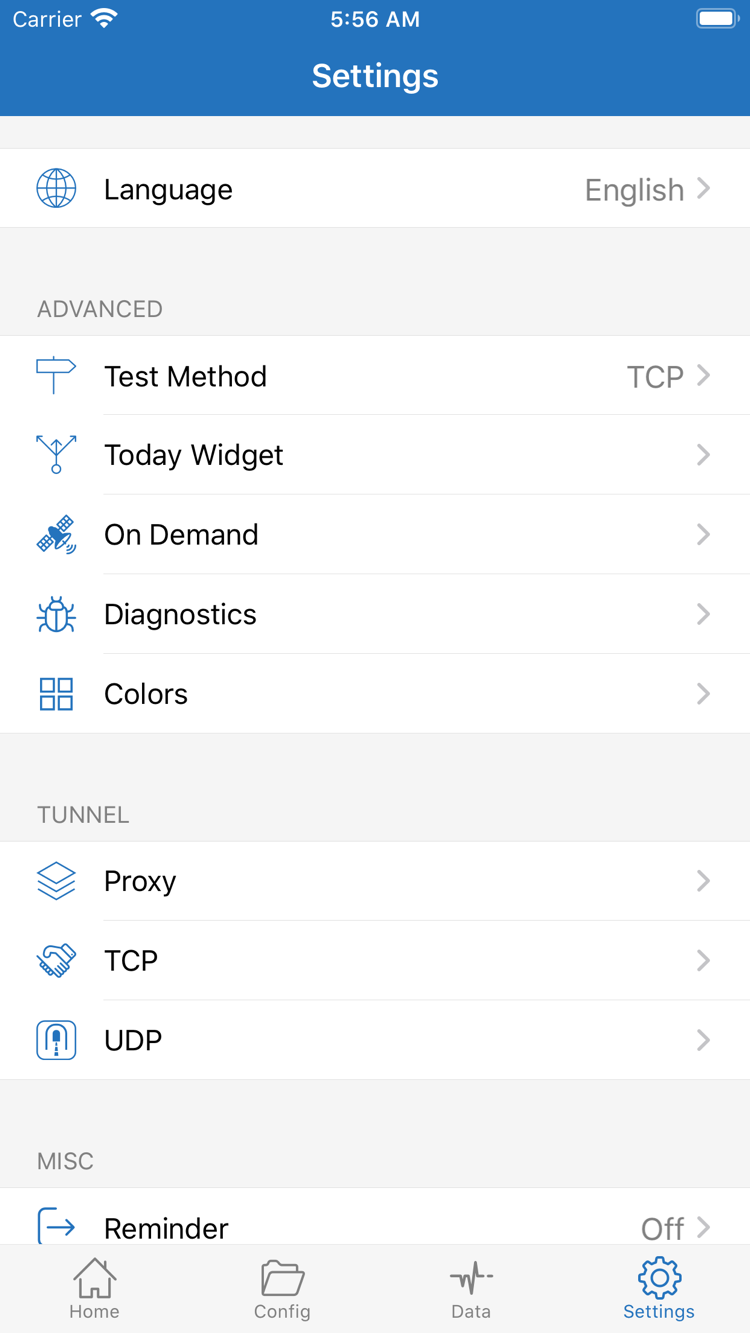
Check Test Method in Settings and use the same method when comparing test results where possible. Different methods can produce different results, so values from two different methods should not be compared directly. If you need to investigate further, check Diagnostics for information related to the time of the issue. Before sharing troubleshooting details, redact subscription links, passwords, accounts, and addresses that should not be public.
The test returns a result, but some pages still will not open
First check whether the problem occurs only with one domain or part of a page. If a page opens but login or images fail, the main page and failed resources may use different domains. Return to Config and check whether an earlier rule in the active file matches, then check FINAL. Do not route all connections through a proxy at the first sign of a problem. If restoring the previous settings resolves it, keep the original configuration and note which change affected the result. For details on rules, Data, and routine maintenance, continue to the complete user manual.